Connect ticketing systems to Exceeds AI (Jira and Linear)
Last updated: May 13, 2026
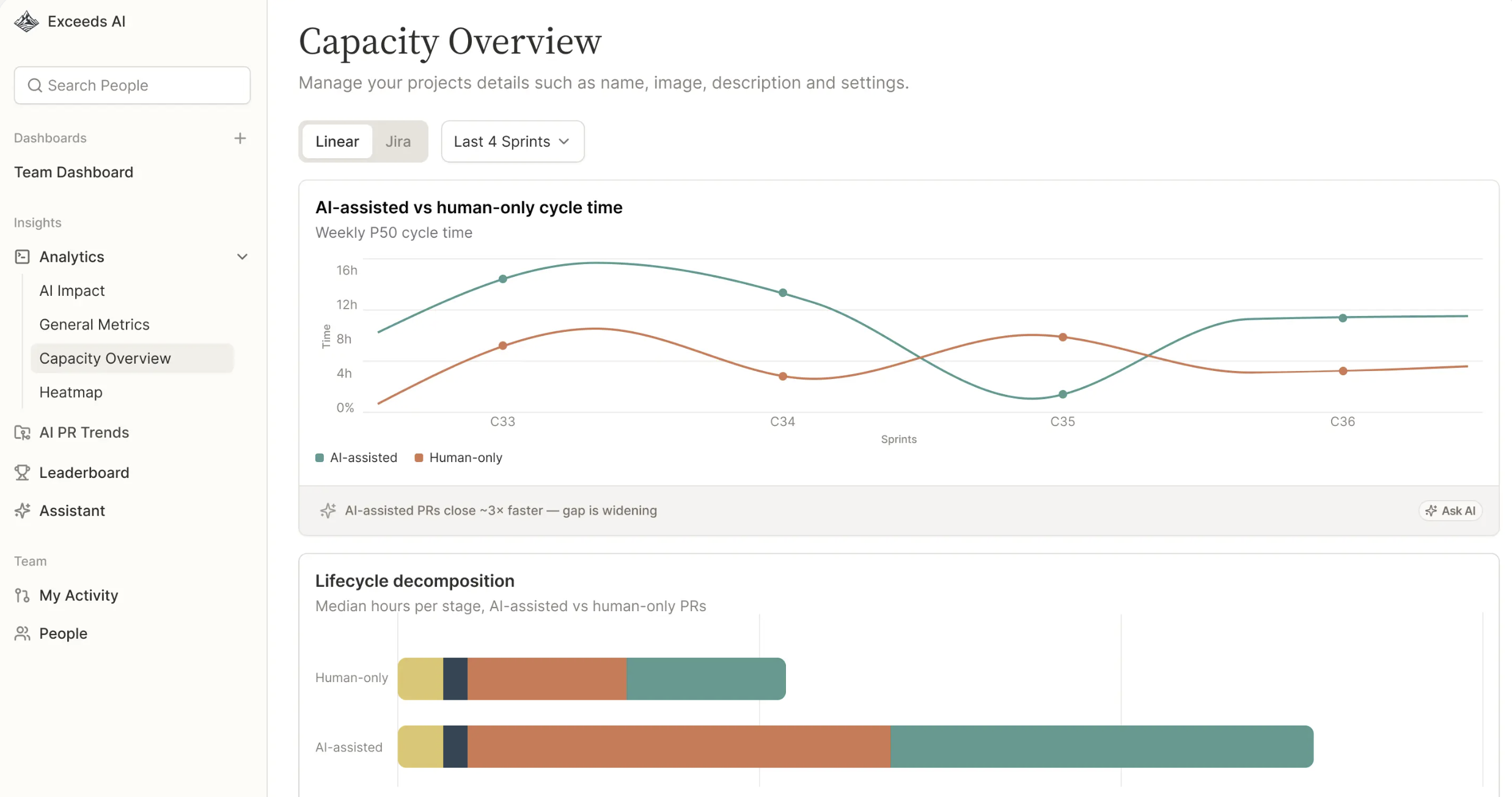
Bring your Jira and Linear projects, issues, and sprints into Exceeds AI to power richer engineering insights, ROI analysis, and team intelligence. Help understand how capacity is changing with AI. (Note: Capacity Overview reports are available only to customers on the Enterprise tier, or via an add-on to the Pro tier).
Who can enable this: Exceeds admins will need to admin-access to Jira or Linear workspaces. If you're not a Jira/Linear admin, ask them to perform these steps.
What you'll need
Admin (or site-admin) access to your ticketing site
The email/password (or SSO) you use to sign in to Jira or Linear
Step-by-step
1. Open Settings
Sign in to Exceeds at web.exceeds.ai.
Click your profile / org avatar at the bottom-left of the sidebar and select Settings.
2. Go to Tools & Integrations
In the Settings sidebar, click the Tools & Integrations tab.
You'll see two sections:
Integrations — apps you've already connected.
Available Integrations — apps you can connect.
⚠ If you don't see the Available Integrations section, integrations aren't yet enabled for your workspace — contact sales to turn them on.
3. Find Jira or Linear
In Available Integrations, set the category filter to Ticketing — or type Jira or Linear in the search box.
Locate the card.
4. Click Connect
On the card, click Connect.
A secure pop-up will open. (If a browser pop-up blocker prevents this, allow pop-ups for web.exceeds.ai and click Connect again.)
5. Authorize in the dialog
Click Continue on the welcome screen.
When prompted, click Sign in with Atlassian (or Linear)
Sign in with your Atlassian admin account.
Enter the (cloud instance) you want to connect.
Review and click Accept.
Wait for the dialog to confirm Connection successful and close.
6. Verify the connection
You'll see a green toast: "Successfully connected."
Jira or Linear now appears in the top Integrations section with a Connected badge.
Initial data sync starts automatically and typically completes within 30 minutes – 2 hours, depending on project size.
What gets synced
Read-only sync . Once connected, Exceeds reads the following from your workspace:
Projects and boards
Issues, statuses, story points, labels
Sprints (start/end dates, scope)
Assignees and reporters
No data is written back to your ticketing site
Need help? Email support@exceeds.ai or visit help.exceeds.ai.